Athena Board Integrated Minutes
This guide explains how to create, edit, review and finalise meeting minutes using Athena Board. The Minutes feature allows administrators to quickly generate professional minutes by pulling information from an existing board pack, collaborating with reviewers, and exporting or signing off the final version.
Follow the steps below to manage minutes from start to finish.
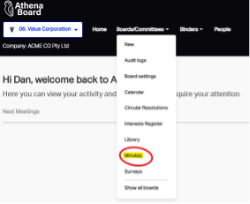
Step One: Navigate to the Minutes Section
Go to Boards > Committees > Minutes. Make sure you are in the correct Board or Committee before you begin.
Step Two: Create New Minutes
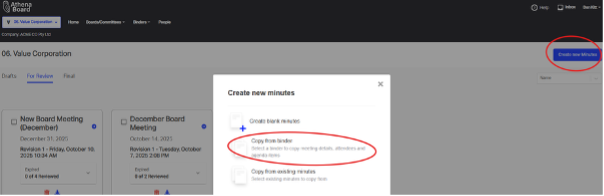
Select Create New Minutes > Copy from Binder. Choose the relevant binder.
Athena Board will automatically pre-populate a minutes template using the binder data, including the date, time, location, attendees, and agenda items.
Step Three: Draft and Edit Your Minutes
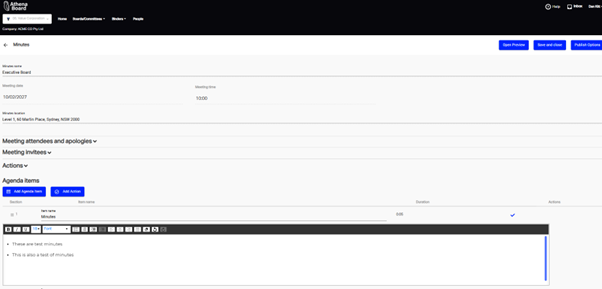
Use the Minute Taking tools to write and format your minutes. You can:
- Add new minute items
- Remove items
- Reorder items by dragging and dropping
Adjust the document until it reflects the meeting accurately.
Step Four: Draft and Edit Your Minutes
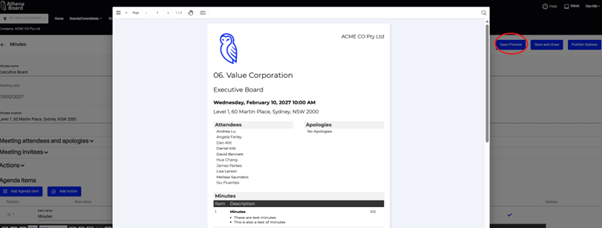
Open Preview to view a draft of your minutes.
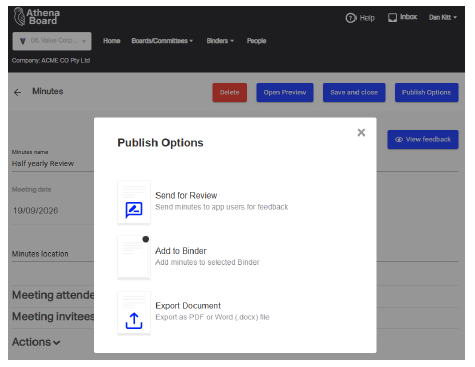
When ready, select Publish Options to send the draft to reviewers.
This allows chosen board members or executives to review and mark up the draft before it is finalised.
Step Five: Reviewer Experience (for Minute Reviewers)
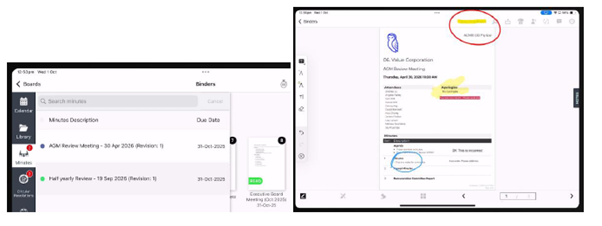
Selected reviewers will:
- Log in to their Director Application
- Receive an in-app notification advising that minutes are ready for review
- See a Minutes icon in the left-hand menu
When they open the minutes, they can provide comments and mark ups.
They then select Send Feedback (circled in red at the top right of their screen).
Step Six: View and Apply Feedback (Administrator)
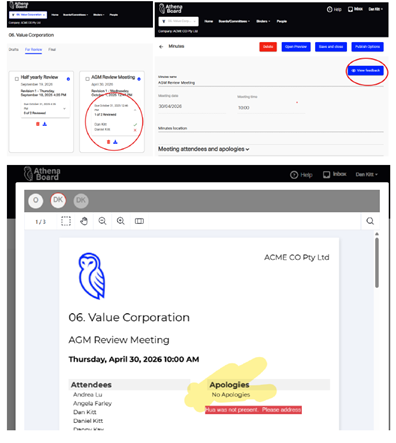
Administrators can access reviewer feedback by going to:
Minutes > For Review > Select the relevant minutes > View Feedback.
To incorporate feedback, you can toggle between:
- The original minutes
- The reviewer feedback
- Your editable minutes draft
Update the content as required.
Step Steven: Finalise the Minutes
Once complete, you can finalise by either:
- Exporting the minutes as Word or PDF, or
- Adding to a Binder
If your Chair or another party needs to formally approve the minutes, you can use:
- The Resolution function for e-signature, or
The Vote function for sign off